The workspace
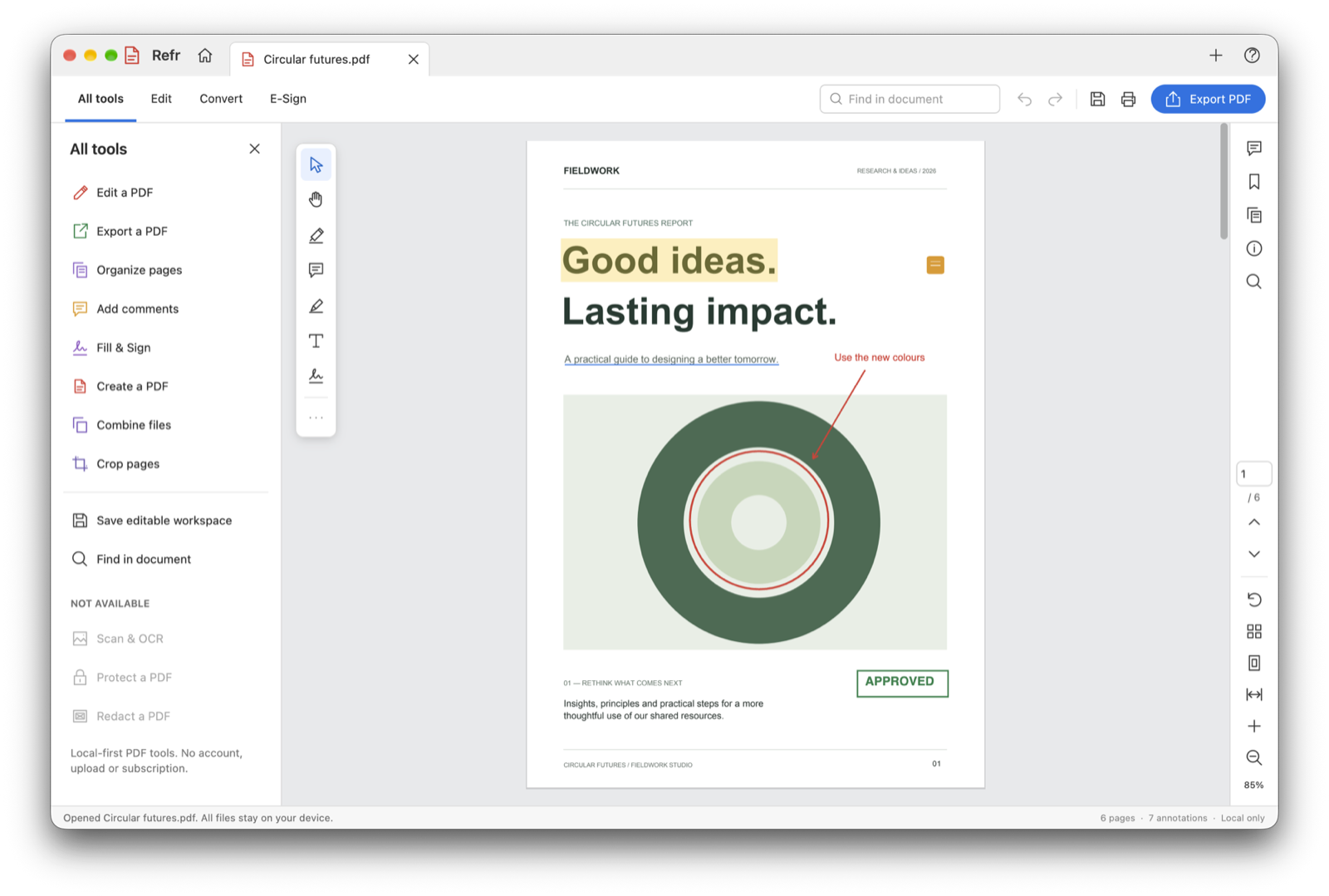
From top to bottom, the Refr window has a title bar with tabs, a global bar, the main area, and a status bar. The main area has the tool panel on the left, the document in the middle, and an optional side panel and the navigation rail on the right.
Title bar and tabs
- Refr: click the name to open About Refr.
- Home (house icon): shows or hides the Home view.
- Tabs: one per open document. A dot (•) before the title means the document has changes that aren't saved in a workspace. Click × on a tab, or press ⌘W, to close it. Refr asks first if the document has unsaved changes.
- +: opens a file.
- ?: shows a short keyboard and pointer guide.
Drag an empty part of the title bar to move the window, and double-click it to zoom the window.
Switch between tabs with ⇧⌘] and ⇧⌘[, or ⌃Tab and ⌃⇧Tab. When you close the last tab, Refr opens a blank document in its place.
Global bar
| Control | Does |
|---|---|
| All tools, Edit, Convert, E-Sign | Switch the tool mode (see below) |
| Find in document | Searches the document. Hidden when the window is narrower than 1100 pt; use ⌘F instead |
| Undo and Redo | Hover to see what they'll undo or redo, such as "Undo Add highlight" |
| Save | Saves the editable workspace (⌘S) |
| Prints (⌘P) | |
| Export PDF | Exports a new PDF (⇧⌘S) |
Tool modes and the tool panel
The tool panel on the left changes with the mode. Close it with × in its header. To open it again, click a mode. Clicking All tools while it's already open closes the panel. The panel is hidden when the window is narrower than 650 pt.
| Mode | For |
|---|---|
| All tools | A launcher for every task: edit, export, organize, comment, sign, create, combine, crop, save and find. It also lists the features that aren't available (OCR, protection and redaction). |
| Edit | Text, text markup, drawing tools, comments, stamps, appearance (color, font size and stroke width), crop, watermark and page numbers. See Annotating. |
| Convert | Output formats: PDF, PNG, plain text, editable workspace, a split into single-page PDFs, and extracting pages. See Saving and exporting. |
| E-Sign | Text, check marks, drawn signatures, initials and approval stamps. See Fill and sign. |
| Organize pages | Opened from All tools. It replaces the document with a grid of pages. See Organizing pages. |
Floating tools
The small toolbar at the top left of the document has the tools you use most:
| Tool | Shortcut |
|---|---|
| Select | V |
| Hand | H |
| Highlight text | |
| Add a comment | |
| Draw freehand | D |
| Add text | T |
| Draw signature | |
| ⋯ More drawing tools | Opens Edit mode |
The status bar describes how to use the current tool when you pick it.
Selection bar
A bar appears at the bottom of the document when something is selected:
- Selected text: Copy, Highlight, Underline and Strikethrough.
- A selected annotation: the color palette, Edit text (for text, comments and stamps), Annotation properties, and Delete.
Side panels
The top half of the navigation rail opens one side panel at a time. Click the same icon again to close it.
| Panel | Shows |
|---|---|
| Comments | Every comment and mark, with replies, Resolve and Delete. See Comments and review. |
| Bookmarks | Workspace bookmarks. See Bookmarks. |
| Page thumbnails | A scrolling list of pages. Click one to go to it. |
| Properties | The document's title, author, page count, sources and workspace file; the current page's size, rotation, crop, bookmark and number of marks; and the selected annotation's type, author, date, position and size. Edit title and author changes the document information. |
| Find | Search results. See Find. |
Navigation rail
The bottom half of the rail controls the view:
| Control | Does |
|---|---|
| Page number and / total | Type a page number and press Return to go there |
| Up and Down | Previous page and next page |
| Rotate | Rotates the current page 90° clockwise |
| Layout | Cycles through continuous, single page and two pages |
| Fit page and Fit width | Zooms to fit |
| + and − | Zooms in and out |
| Zoom percentage | Click to type an exact zoom level (10–800 %) |
Status bar
The left side shows what just happened ("Copied 12 words.", "Undid: Move annotation") or what the current tool does. Errors are shown in red. The right side shows the page count, the number of annotations, and Local only.
Dialogs
Refr asks for short text, such as a comment, a bookmark name or a page range, in a dialog inside the window. Press Return to accept or Esc to cancel. Confirmations such as Delete this page? use standard macOS alerts.