Introducing Elyra Conductor
One cozy window for all your local projects.
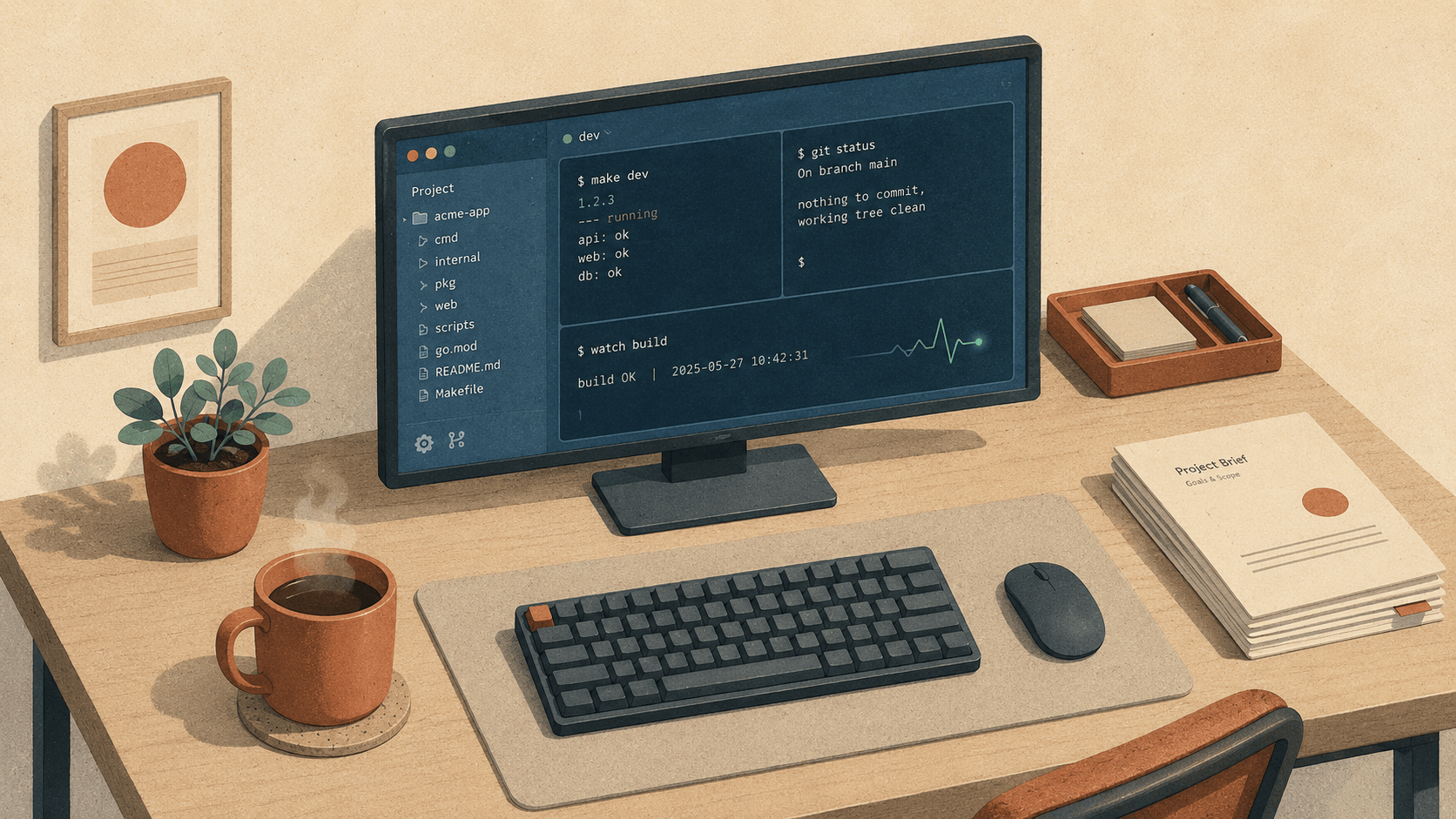
If you spend your days hopping between projects, you know the little rituals by heart. Open a terminal. cd into the right folder. Open another tab for the dev server. Squint at the prompt to remember which branch you're on. Pop open your editor. Realize you're in the wrong project. Start again.
None of these steps are hard. But there are so many of them, and they quietly add up — a hundred tiny papercuts between you and the thing you actually wanted to do.
Elyra Conductor is our answer to that. It's a single, calm cockpit for every local project on your machine: pick a project from the sidebar and it opens in a terminal rooted right where you need it. Split panes however you like, browse the files, quick-edit inline, and launch your real editor — all without leaving the window.
Why we built it
There are plenty of terminals, plenty of editors, and plenty of multiplexers. What there wasn't, for us, was a comfortable place to stand in between all of them — something that knows about your projects, not just your shell.
So Conductor leans into a few opinions:
Projects are the unit, not tabs. The sidebar scans a folder (by default
~/Code) and shows each repo with its current git branch, dirty state, and ahead/behind counts. You see the lay of the land at a glance.Nothing should die when you rearrange things. Split a pane or drag a divider and your shell session keeps running. No respawned shells, no lost scrollback.
It orchestrates; it does not reason. Conductor is a launcher and a host UI — never an AI agent. (More on that below, because it's a deliberate choice.)
The result is something that feels less like a tool you operate and more like a desk that's already tidy when you sit down.
How it works (with examples)
Let's walk through a normal afternoon.
1. Pick a project, get a terminal
You launch Conductor and the sidebar is already populated from ~/Code. Each entry tells you something useful:
●  elyra-conductor     main ✱   ↑2
   acme-api            feat/billing
   marketing-site      main      ↓1
That ✱ means uncommitted changes; ↑2 means two commits ahead of the remote. Click elyra-conductor and a terminal tab opens, already cd'd into the folder. No typing required.
Want it back tomorrow without scrolling? Pin it, and it sticks to the top of the sidebar — even if you point Conductor at a different folder later.
2. Split panes that survive everything
You need a dev server and a place to run tests. Hit ⌘D to split right:
┌──────────────────────┬──────────────────────┐
│ $ pnpm dev           │ $ pnpm test --watch  │
│ ➜ localhost:1420     │ ✓ 42 passed          │
│                      │                       │
└──────────────────────┴──────────────────────┘
Drag the divider to give the test pane more room. Split again with ⇧⌘D for a third pane. The key trick under the hood: terminals live in a flat layer keyed by id, and a pure layout module computes their geometry from a split tree. So resizing never remounts a terminal — your pnpm dev keeps running through every relayout.
Switch to another tab and the test pane quietly pulses green when new output arrives, so you know the moment something finished (or broke) while you were looking elsewhere.
3. Browse, peek, and quick-edit
Tap ⌘B to open the file sidebar — a lazy-loaded tree of the active project. Click a file and it opens in an inline Monaco editor. Fix a typo in a config file, hit ⌘S, done — no context switch, no separate window.
Need the full power of your real editor? The per-project buttons launch the project straight into Zed, VS Code, or Cursor, whichever you have installed.
4. Everything from one keystroke
⌘K opens the command palette — the fastest way to do almost anything:
⌘K  ▸ bil
    Switch to project: acme-api  (feat/billing)
    Run: build
    Load workspace: billing-deep-dive
Jump between projects and tabs, run a per-project task (Conductor reads your package.json, composer.json, Makefile, and justfile and offers them as Run: …), or restore an entire saved workspace — all your projects, tabs, split panes, the open file, and theme — exactly as you left it.
5. Commit without leaving
When the work is done, the built-in commit dialog lets you review the changes, write a message, and commit (and push) with ⌘↵. You never had to drop back to the shell just to ship.
A deliberate boundary: Conductor conducts, it doesn't reason
Here's a choice we care about. Conductor will never call an LLM, store an API key, or grow built-in "AI features." All of that intelligence lives in external tools — chiefly the Elyra coding-agent CLI — which Conductor runs and displays the same way it runs Zed, iTerm, or git.
Rule of thumb: if a feature needs an API key or a model call, it belongs in Elyra, not in Conductor.
This keeps Conductor small, auditable, and free of secrets. When you do want the agent, Conductor hosts it nicely: open a native panel, watch replies stream in, answer confirm/select/input prompts, and get a notification ring when it needs you. But the reasoning stays in Elyra. Conductor is the terminal emulator for the agent — never the agent itself.
Under the hood
For the curious, Conductor is cross-platform Rust + web rather than a native Swift app or a wrapper around one terminal:
Layer Choice Shell Tauri 2 — Rust core + system webview Frontend Svelte 5 (runes) + Vite Terminal xterm.js ↔ portable-pty Editor Monaco
The heavy lifting — PTYs, the filesystem, git, launching processes — lives in Rust, while the UI uses battle-tested web components. One PTY per pane, read on a dedicated thread, streamed to the frontend as events. It's boring in the best way.
Try it
Elyra Conductor ships as a ready-to-run macOS app (Apple Silicon / arm64) — no toolchain, no build step. Grab it here:
Download the binary, drag it into /Applications, and open it. On first launch it scans ~/Code — use the ⋯ button (or the command palette) to point it somewhere else. Click a project, split a pane with ⌘D, and hit ⌘K whenever you're lost.
Requirements: an Apple Silicon Mac (M1 or newer). Updates are signed and install themselves — Conductor checks GitHub Releases on startup and offers a one-click update when there's a new version.
That's the whole idea: a quiet, capable window that already knows about your projects, so you can get on with the work. Welcome to the cockpit. ☕