Grove 0.11: a database client that already knows your projects
Grove 0.11 adds a built-in database panel that auto-connects to every project's database by reading its .env — zero-config browsing for free, with inline editing, a schema inspector, and a production-safety guard in Grove Pro.
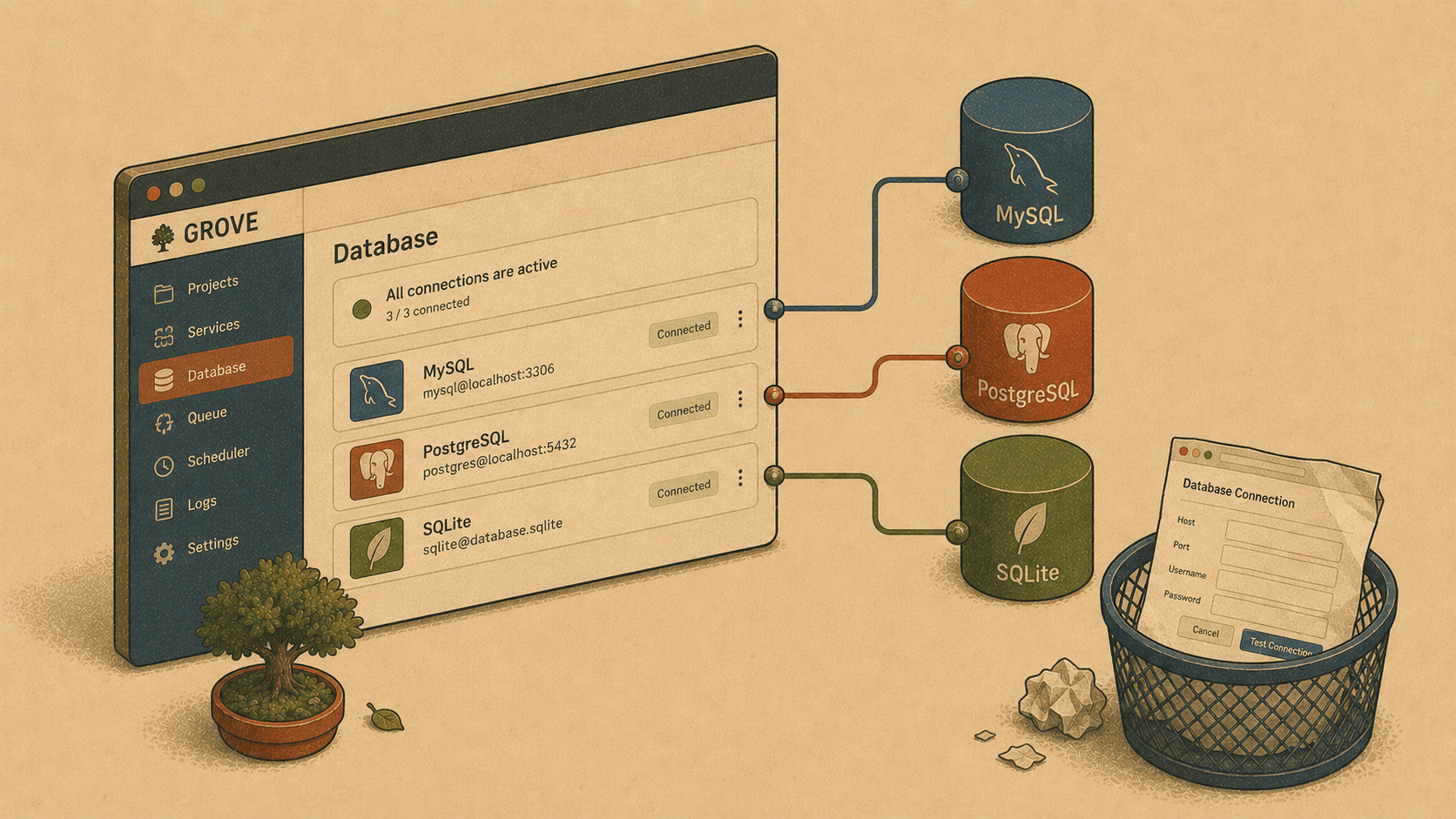
Open your favorite database GUI. Now count the steps before you see a single row: pick a connection (or create one), type the host, the port, the database name, the username, hunt down the password, maybe fiddle with SSL. Every project, every machine, every time.
Grove 0.11 skips all of that. Because here's the thing every standalone database client is missing, and Grove isn't: Grove already knows your projects.
Why: the connection details were never a mystery
Your Laravel app's database credentials already live somewhere — right there in the project's .env. DB_CONNECTION, DB_HOST, DB_DATABASE, the lot. A dedicated database GUI can't see that; it lives in its own world, so you re-enter what your app already knows.
Grove is different. It serves your sites, so it can read each project's .env and just… connect. The new Database panel discovers every site that has a database and lists them, ready to browse — nothing to type, nothing to configure.
TablePlus and DataGrip are excellent, but they don't know your projects. Grove does. That's the whole idea, and it's the kind of thing only a tool that owns your local environment can pull off.
How: open the panel, click a table
Launch Grove, open Database in the sidebar, and your projects are already there — each tagged with its engine (MySQL, PostgreSQL, or SQLite).
Click a connection → its tables appear.
Click a table → its rows load into a data grid.
Or write a query and hit ⌘⏎:
select * from users where created_at > '2026-01-01' limit 100
Browsing tables and running read-only queries is free — a genuinely useful, zero-setup way to peek at any project's data.
The Pro touches: edit, inspect, and don't-touch-prod
Grove Pro turns the browser into a full workbench.
Edit rows inline. Double-click a cell, type, press Enter. Grove writes a safe UPDATE using the table's primary key — no hand-crafted SQL to change one value.
Inspect the schema. Flip a table to the Schema tab to see its columns, types, nullability, indexes, and foreign keys at a glance — the shape of your data without reading a migration file.
And a guard we're quietly proud of: Grove inspects each connection and flags any that look like production with a ⚠ badge — and disables editing on them. We've all had that half-second of horror after running an UPDATE against the wrong database. Grove puts a gate in front of it. Read-only browsing still works; it just won't let you fat-finger live data.
Free or Pro, at a glance
Free
Browse tables ✅ Run SELECT queries ✅
Grove Pro
✅ Inline row editing ✅ Schema inspector ✅ Production-safety guard
Activate Pro with a license key — grove license activate … or Settings → License — and the workbench unlocks.
A note on how it's built
We didn't build a database engine from scratch. Grove reuses e-db, the mature, Laravel-aware engine already powering the database panel in e, Elyra's code editor. It's open source (MIT), it handles MySQL, Postgres, and SQLite, and it's exactly the kind of shared foundation that lets a small team ship a polished feature quickly. One engine, two products, one place to make it better.
The bigger picture
Grove Pro now stands on two legs. Team secret sync ($99/seat) solves the collaboration problem — a project's .env shared securely, never pasted into Slack. And now the database client gives the solo developer a reason to reach for Pro: a real, zero-config data workbench built into the environment that already runs their app.
The theme, as always: Grove owns the plumbing, so it can do things bolted-on tools can't. Your DNS, your HTTPS, your PHP, your databases — and now a database client that skips the setup because it already knows where everything is.
Open Grove → Database → click a table.
That's the whole workflow. Grove auto-updates — after it relaunches, the Database tab is waiting, already connected to your projects. 🌱🗄️